Review proposed changes
An AI agent or a script wants to change a diagram your team relies on. It can't edit the diagram directly. It sends a proposal: a set of changes with a title and a short message. Your diagram stays as it is until someone who can edit it reviews the proposal and applies it.
Agents send proposals through MCP or the REST API, using an API token with Read and write access. API tokens are available on all paid plans.
Open a proposal
Open the review link the agent or script gives you. The diagram loads in the editor with the proposal in the right panel.
Every proposal for a diagram is also listed in the Proposed changes pane, under the icon of the same name in the top bar. Its badge counts the proposals that still need a decision. An Edited since label means the diagram changed after the proposal was sent.
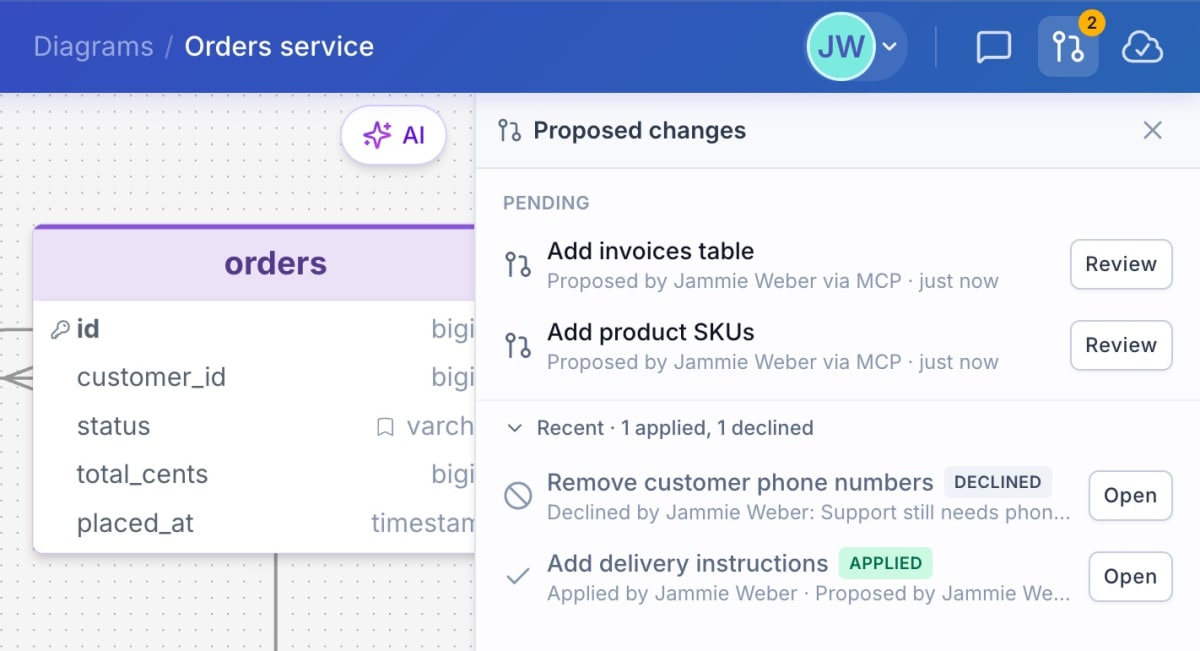
Anyone who can view the diagram can read a proposal. Only people who can edit it can apply, decline, undo or reopen one, and only they see the Proposed changes icon. An agent can't apply its own proposal.
Read the changes
The canvas shows your diagram as it is now, with the proposal on top:
Added tables have a dashed green outline. They aren't part of your diagram yet.
Changed tables have an amber outline, with the changed columns marked inside.
Removed tables have a red outline. They stay on your diagram until you apply.
Tables the proposal doesn't touch are faded. The panel lists each changed table as a card; click a change to find it on the canvas. On a large proposal, step through the changed tables with the ← and → keys, or turn on Hide unchanged in the canvas toolbar.
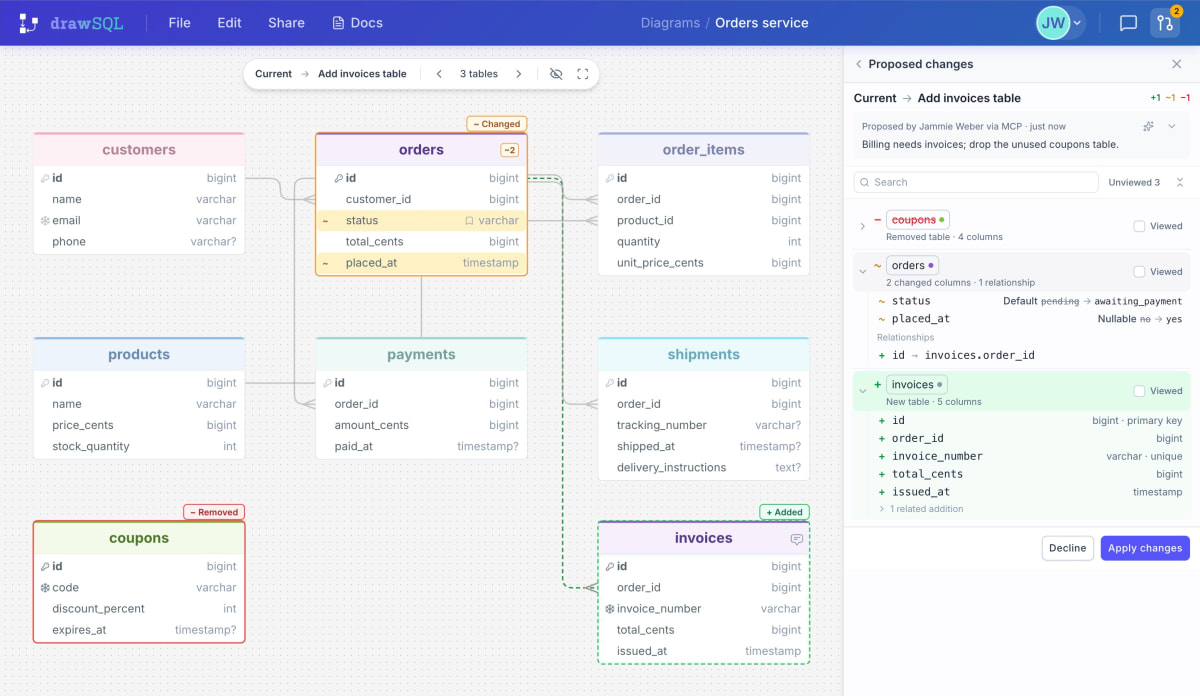
Layout changes, such as a moved table or a new table color, are hidden unless you tick Show layout changes at the bottom of the list.
Apply or decline
Click Apply changes, check the title, message and table counts in the dialog, then confirm. The diagram reloads with the changes in place.
Applying changes only the diagram. DrawSQL doesn't connect to your database or run a migration.
If Apply changes is greyed out, a red card at the top of the list says why. For example, the new tables would take you over your plan's table limit.
To decline, click Decline and add a reason if you have one, up to 500 characters. The agent sees the reason when it checks the proposal, so it can send a revised one. A declined proposal can't be reopened.
Undo an apply
Before it applies anything, DrawSQL saves a version of your diagram, named after the proposal, such as "Before applying: Add invoices table". To go back to it, click Undo on the "Changes applied." notification. Later, open the proposal from Recent in the Proposed changes pane and click Undo changes.
The editor's keyboard undo doesn't reverse an apply, because applying reloads the diagram.
If the diagram changes during review
DrawSQL always shows a proposal against your diagram as it is now, not as it was when the agent sent it. If someone edits the diagram while you review, the buttons change to a refresh button, such as Refresh to review 2 new changes. If the diagram changes just before you click Apply changes, DrawSQL doesn't apply and asks you to review again.
Reopen an expired proposal
A proposal expires 30 days after it's sent and moves to Expired in the Proposed changes pane. If you can edit the diagram, click Reopen to give it another 30 days.